Biggest Tuf Gaming Vg27Aql1A Buying Mistakes (And How to Avoid Them)
The ASUS TUF Gaming VG27AQL1A has established itself as a cornerstone of the mid-range 1440p gaming monitor market. Positioned as an evolution of the widely acclaimed VG27AQ, this refined model brings a host of improvements in ergonomics, brightness, and color performance. However, because it sits in such a competitive market segment, many buyers find themselves making critical errors during the purchase process or failing to optimize the display once it arrives on their desk. Selecting a high-performance monitor involves more than just looking at a spec sheet; it requires an understanding of how those specs translate into real-world gaming and productivity environments.
When investing in a display of this caliber, the goal is typically to find the "sweet spot" of resolution, refresh rate, and panel quality. The VG27AQL1A hits many of these marks, offering a 170Hz overclocked refresh rate, an IPS panel with high color accuracy, and G-Sync compatibility. Yet, many consumers overlook technical nuances like overshoot ghosting, HDR limitations, and the specific hardware requirements needed to drive a QHD panel at high frame rates. This article explores the most common pitfalls buyers face when considering the TUF Gaming VG27AQL1A and provides actionable advice on how to ensure this monitor fits your specific use case.
Misunderstanding the "170Hz" Specification
One of the primary selling points of the VG27AQL1A is its 170Hz refresh rate. A common mistake buyers make is assuming this is the native out-of-the-box setting. By default, the panel typically operates at 144Hz. To achieve the 170Hz mark, users must manually enable the "Overclocking" feature within the On-Screen Display (OSD) settings. Futhermore, this peak refresh rate is only accessible via the DisplayPort connection. Buyers who attempt to use the HDMI interface often find themselves capped at lower refresh rates due to the bandwidth limitations of the HDMI 2.0 ports on this specific model.
The mistake here is twofold: first, failing to realize the hardware dependency on DisplayPort, and second, not understanding that overclocking a monitor can sometimes lead to stability issues or increased input lag in rare scenarios. While the VG27AQL1A is generally very stable at 170Hz, users should be aware that the difference between 144Hz and 170Hz is often imperceptible to the human eye, whereas the jump from 60Hz to 144Hz is transformative. Some buyers obsess over the 170Hz figure without ensuring their GPU can actually maintain those frame rates at 1440p, which leads to a subpar experience if the frame rate fluctuates wildly.
The HDR-400 Trap: Expecting a Cinematic Experience
The VG27AQL1A carries a VESA DisplayHDR 400 certification. For many uninitiated buyers, the "HDR" sticker implies a deep, cinematic contrast with searing highlights and inky blacks. However, HDR 400 is the entry-level tier for High Dynamic Range and behaves differently than the HDR experience found on high-end OLED or Mini-LED televisions. Because the VG27AQL1A uses an IPS panel with a traditional edge-lit backlight and no sophisticated local dimming, it lacks the hardware to create a true HDR effect.
When buyers enable HDR on this monitor, they often find the image looks "washed out" or overly bright without a meaningful increase in contrast. This is because the monitor simply pushes the entire backlight to its maximum brightness rather than controlling specific zones. The mistake is buying this monitor specifically for HDR content. Instead, it should be viewed as a high-quality SDR (Standard Dynamic Range) monitor that happens to be able to process an HDR signal. For professional photo editing or high-end movie watching where contrast is king, the limited contrast ratio typical of IPS panels will be a bottleneck that no amount of HDR certification can fully overcome.
Ignoring the "IPS Glow" and Contrast Constraints
The VG27AQL1A utilizes In-Plane Switching (IPS) technology. While this is excellent for color accuracy and wide viewing angles, it carries the inherent limitation of lower contrast ratios compared to Vertical Alignment (VA) panels. Buyers who primarily play horror games or titles set in dark environments (like Dead Space or Resident Evil) may be disappointed by the "grayish" appearance of blacks in a dark room. This is often exacerbated by "IPS Glow," where light seems to bleed from the corners of the screen when viewing dark content at an angle.
A frequent error is not considering the lighting of the room where the monitor will be placed. If you game in a pitch-black room, the limitations of IPS contrast will be very apparent. If you game in a well-lit office or living room, the superior color vibrance of the VG27AQL1A will shine, and the contrast issues will be nearly invisible. Understanding that this monitor is optimized for color-heavy, fast-paced titles like Apex Legends or Forza Horizon rather than dark, atmospheric sims is crucial for buyer satisfaction.
Mismatching GPU Performance with 1440p Resolution
Moving from a 1080p monitor to the 1440p (QHD) resolution of the VG27AQL1A is a significant jump in pixel count—roughly 78% more pixels. A common mistake for those upgrading on a budget is assuming that if their PC ran 1080p games perfectly, it will handle 1440p just as well. Driving a 1440p display at 144Hz or 170Hz requires a robust graphics card. Using an entry-level or older mid-range GPU can result in the user having to lower graphical settings so much that the benefit of the higher resolution is lost.
Discover deals on Electronics — updated daily.
See Deals →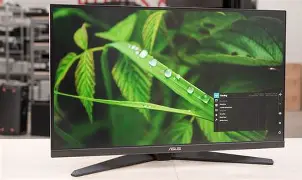
Buyers should ensure their system is equipped with at least a modern mid-range GPU to truly take advantage of this monitor. Furthermore, buyers often forget to check for G-Sync and FreeSync compatibility. While the VG27AQL1A is officially "G-Sync Compatible," it relies on Adaptive-Sync technology. This works wonderfully for both NVIDIA and AMD users to prevent screen tearing, but it must be enabled in both the monitor's OSD and the GPU's control panel. Failing to set this up correctly results in "micro-stuttering" or tearing, leading to the mistaken belief that the monitor is defective.
An Analysis of Features and Performance
The VG27AQL1A is a significant redesign of the "AQL" lineage. It features a new, more aggressive industrial design compared to its predecessors. The stand is one of its strongest features, offering a wide range of tilt, swivel, pivot, and height adjustments. Many monitors at this price point use "V-shaped" feet that take up an enormous amount of desk space; the VG27AQL1A uses a more compact, sturdy base that allows for better keyboard placement, particularly for FPS gamers who tilt their keyboards.
In terms of color performance, this monitor covers 130% of the sRGB gamut and 95% of the DCI-P3 space. This makes it a dual-threat tool for both gaming and creative work. However, the factory calibration can sometimes lead to an oversaturated look. Users who want a more "natural" appearance for photo editing will need to delve into the color temp settings or use a hardware colorimeter to reel in the wide gamut. The inclusion of ELMB Sync (Extreme Low Motion Blur) is another highlight. This is ASUS’s proprietary tech that allows for motion blur reduction to work simultaneously with Variable Refresh Rate (VRR). In most monitors, you have to choose one or the other. However, the mistake many make is turning ELMB Sync on and leaving it on; it can significantly reduce brightness and causes "strobe crossovers" (doubling of images) if the frame rate doesn't match the refresh rate perfectly.
Pros and Cons
- Pro: Excellent Color Accuracy: The wide color gamut makes games look incredibly vibrant and provides enough accuracy for semi-professional video and photo work.
- Pro: Versatile Ergonomics: The stand is among the best in class, allowing users to find the perfect ergonomic position without needing a third-party VESA arm.
- Pro: ELMB Sync Technology: The ability to use backlight strobing alongside G-Sync/FreeSync is a rare feature that helps keep fast-moving objects sharp.
- Pro: Build Quality: The TUF line is known for durability, and the VG27AQL1A feels premium with minimal plastic creak and a sturdy assembly.
- Con: Limited HDR Performance: While it can accept an HDR signal, the lack of local dimming means the HDR experience is underwhelming and often not worth using.
- Con: IPS Contrast Levels: Blacks can appear deep gray in dark rooms, which is a standard limitation of the technology but worth noting for fans of dark-themed games.
- Con: OSD Navigation: While it has a joystick, the menu system can be dense and unintuitive for users who just want to make quick adjustments to brightness or input.
- Con: Power Adapter Location: The monitor uses an external power brick rather than an internal power supply, which can make cable management slightly more cluttered.
Performance Comparison
To understand where the VG27AQL1A stands, it is helpful to compare it against its predecessor and its primary competition in the 1440p space. The following table highlights the technical differences that often confuse buyers during the selection process.
| Feature | TUF VG27AQ (Older) | TUF VG27AQL1A | Typical Competitor |
|---|---|---|---|
| Max Refresh Rate | 165Hz (OC) | 170Hz (OC) | 144Hz - 165Hz |
| Brightness | 350 nits | 400 nits | 250 - 350 nits |
| Color Gamut (sRGB) | 99% | 130% | 99% - 110% |
| Variable Refresh Rate | G-Sync Compatible | G-Sync Compatible | FreeSync/G-Sync |
| HDR Rating | HDR10 | DisplayHDR 400 | None or HDR10 |
Buying Guide: Is the VG27AQL1A Right for You?
Before purchasing, you should evaluate your hardware and your environment. This monitor represents a "premium mid-range" choice. It is not the cheapest 1440p monitor available, but it offers build quality and features that cheaper alternatives lack. If you are a competitive gamer who plays titles like Valorant or Counter-Strike, the motion clarity provided by the 170Hz panel and the ELMB Sync feature will be your primary reasons for buying.
Conversely, if you are a "visual" gamer who enjoys large open-world RPGs like The Witcher 3 or Cyberpunk 2077, you are buying this for the 1440p density and the DCI-P3 color coverage. In this case, your biggest mistake would be neglecting the GPU requirements. To play these titles at 1440p with high settings, you need to ensure your computer is up to the task. Another consideration is desk depth. Because this is a 27-inch monitor, sitting too close can lead to eye strain and make the pixel structure visible. An ideal viewing distance is between 20 and 30 inches.
One often-overlooked aspect is the audio. The VG27AQL1A comes with built-in 2W speakers. A common buying mistake is assuming these will be sufficient for gaming or media. They are functional for basic notifications or a quick YouTube video, but they lack any semblance of bass or volume depth. Always factor the cost of a decent pair of headphones or external speakers into your budget if you don't already own them.
Optimizing the Setup: Avoiding Post-Purchase Mistakes
Once the monitor arrives, the journey isn't over. Many users leave the monitor on "Racing Mode" (the default) and never touch the settings again. While Racing Mode is a good all-around preset, it often locks out certain adjustments like sharpness or saturation. To get the best out of the VG27AQL1A, users should explore the "Cinema" or "User" modes for media, and potentially use "FPS" mode only when competitive clarity is more important than image beauty, as it often washes out colors to make enemies in shadows more visible.
Shop the latest Electronics picks on Amazon.
Shop Amazon →Another technical error is leaving the "Trace Free" (overdrive) setting on its default. ASUS monitors typically use a scale of 0 to 100 for overdrive. If you set this too high (80 or 100), you will see "inverse ghosting" or purple/overshoot trails behind moving objects. For the VG27AQL1A, the sweet spot is usually around 40 or 60. This provides the best balance between reducing motion blur and avoiding distracting artifacts. Taking ten minutes to tune these settings will make the monitor feel like a much more expensive piece of equipment than it appears out of the box.
The Cable Quality Oversight
While the VG27AQL1A usually ships with a DisplayPort cable, some regional variations or open-box deals may omit it. A frequent mistake is using an old DisplayPort cable from a 1080p monitor. Not all cables are created equal; to achieve 1440p at 170Hz with 10-bit color, you need at least a DisplayPort 1.2 certified cable (though 1.4 is preferred for better overhead). Using an inferior cable can lead to "black screens," flickering, or the inability to select the highest refresh rate in your Windows Display Settings.
Similarly, if you are connecting a laptop to this monitor, ensure your laptop's USB-C or HDMI port supports the necessary bandwidth. Many port-selection mistakes lead buyers to believe their monitor is "ghosting" or "laggy" when the bottleneck is actually the data pipeline between the computer and the screen. Always prioritize DisplayPort whenever possible with this specific ASUS model to unlock its full potential.
Checking for Dead Pixels and Backlight Bleed
Quality control is a reality of the monitor industry. Regardless of the brand, panels are produced in large batches and can occasionally have defects. A mistake many buyers make is not performing a "torture test" within the return window. As soon as you set up your VG27AQL1A, you should run a dead pixel test (using a full-screen white, black, red, green, and blue background) and check for excessive backlight bleed in a dark room.
It is important to distinguish between "IPS Glow" and "Backlight Bleed." Glow is a shimmer that changes as you move your head; bleed is a static "leak" of light from the edges that doesn't change. While a small amount of glow is expected, significant bleed that is visible during normal gameplay is a valid reason for an exchange. Don't settle for a defective panel because you've already thrown away the box—keep all packaging until you are certain the panel is perfect.
Conclusion
The ASUS TUF Gaming VG27AQL1A is a powerhouse of a monitor that provides a high-end experience if handled with care. The biggest mistakes buyers make—underestimating GPU requirements, expecting too much from HDR 400, or failing to navigate the intricacies of the 170Hz overclock—are all easily avoidable with a bit of research. By understanding that this is an IPS-based, color-accurate, high-speed gaming tool, you can set your expectations accordingly and enjoy one of the most balanced displays currently on the market.
Whether you are upgrading from a 1080p office screen or looking for a secondary display for a high-end rig, the VG27AQL1A offers the flexibility to handle almost any task. Just remember to use the right cables, tune your overdrive settings, and recognize the hardware limitations of the IPS panel. When configured correctly, the TUF Gaming VG27AQL1A is not just an electronic peripheral, but a significant upgrade to your entire digital experience, bringing games to life with a level of clarity and color that few other monitors in this price bracket can match.